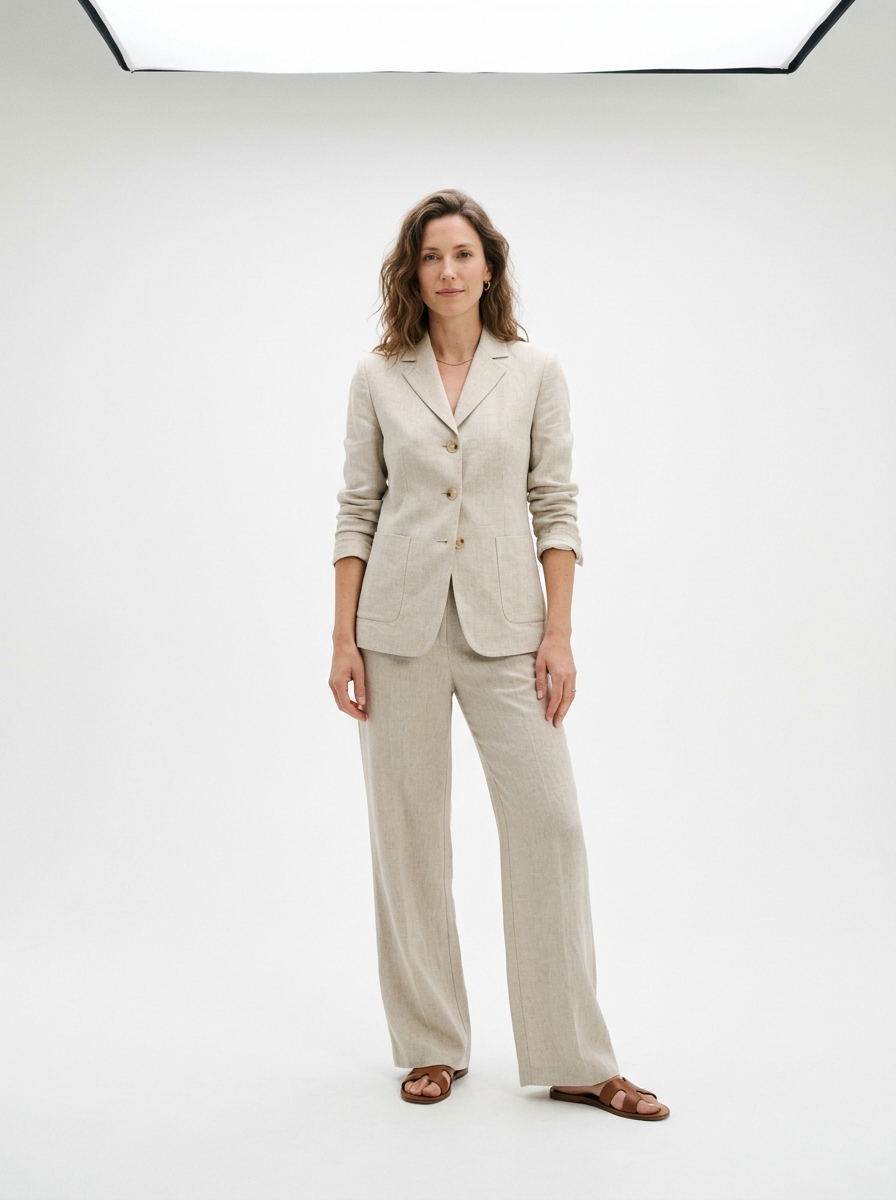
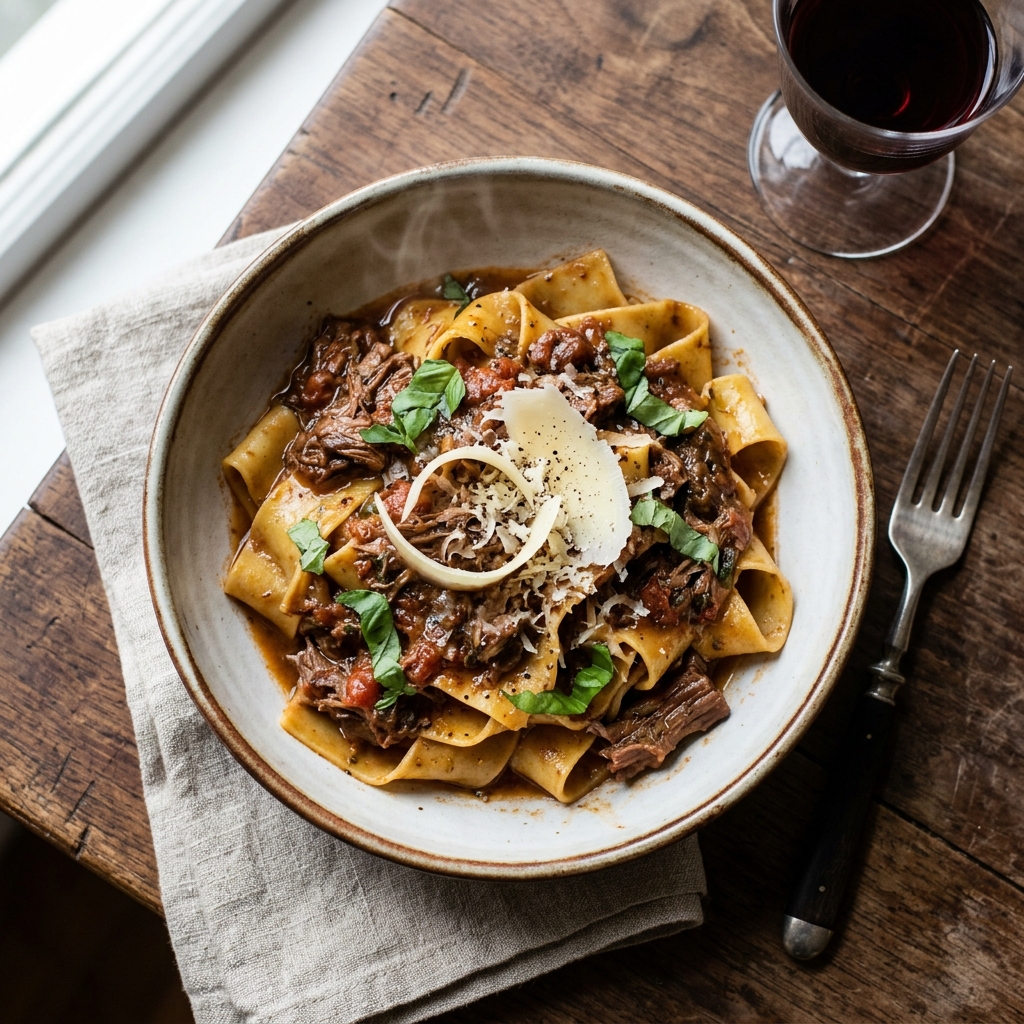
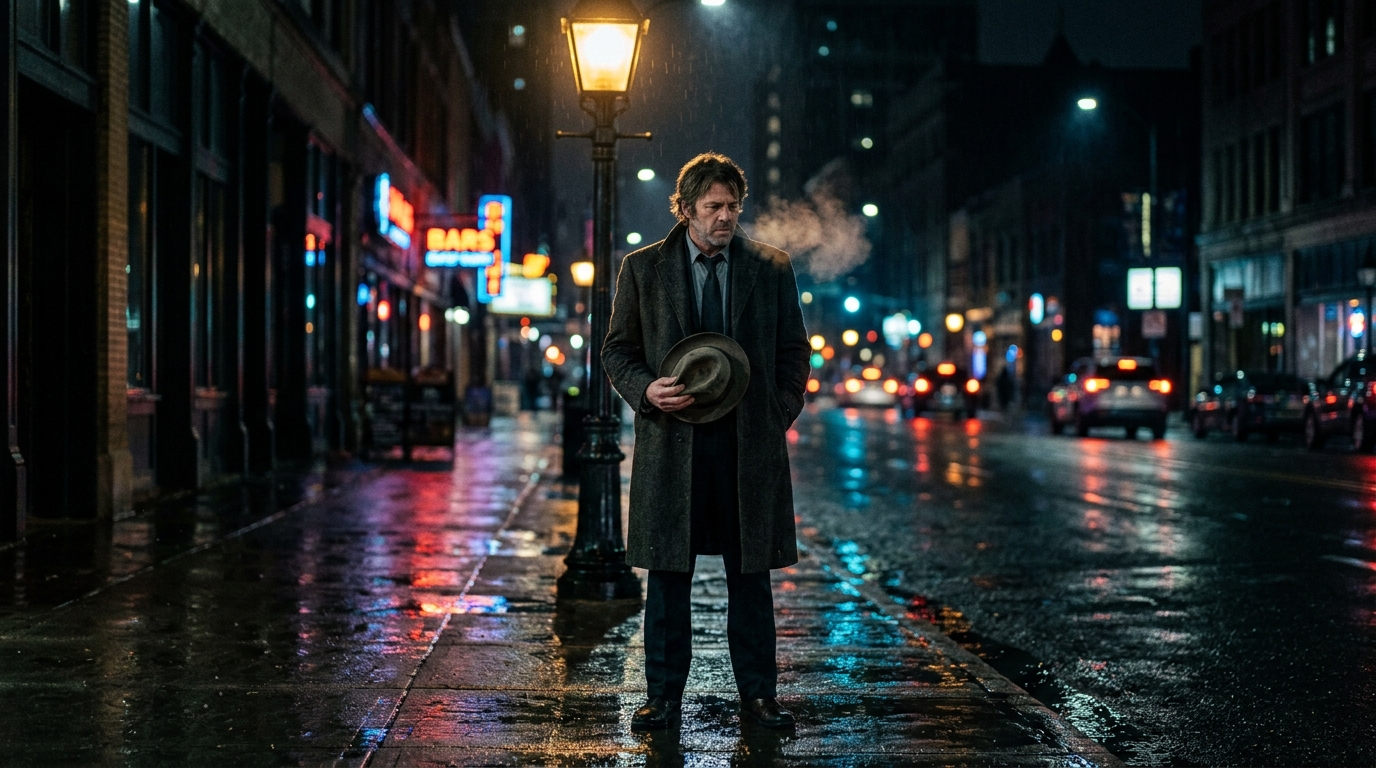
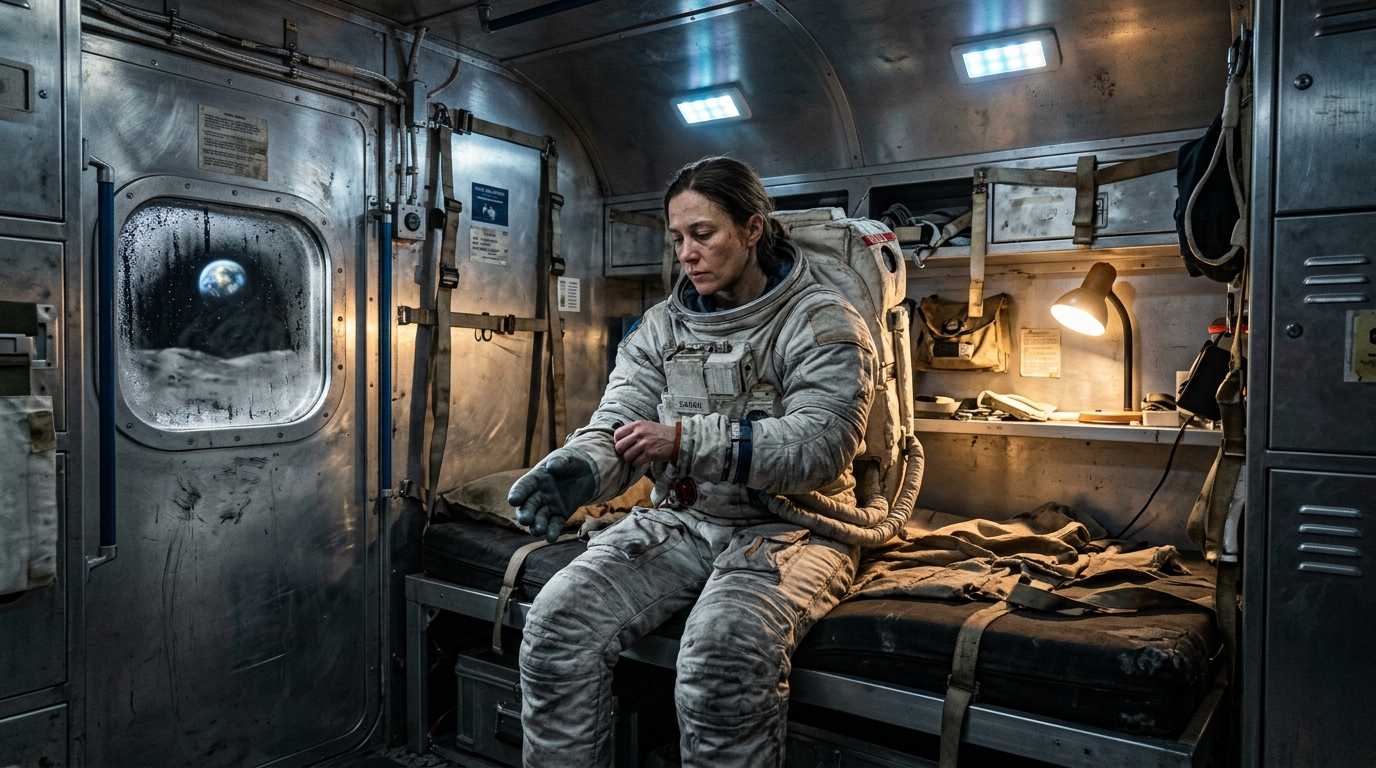
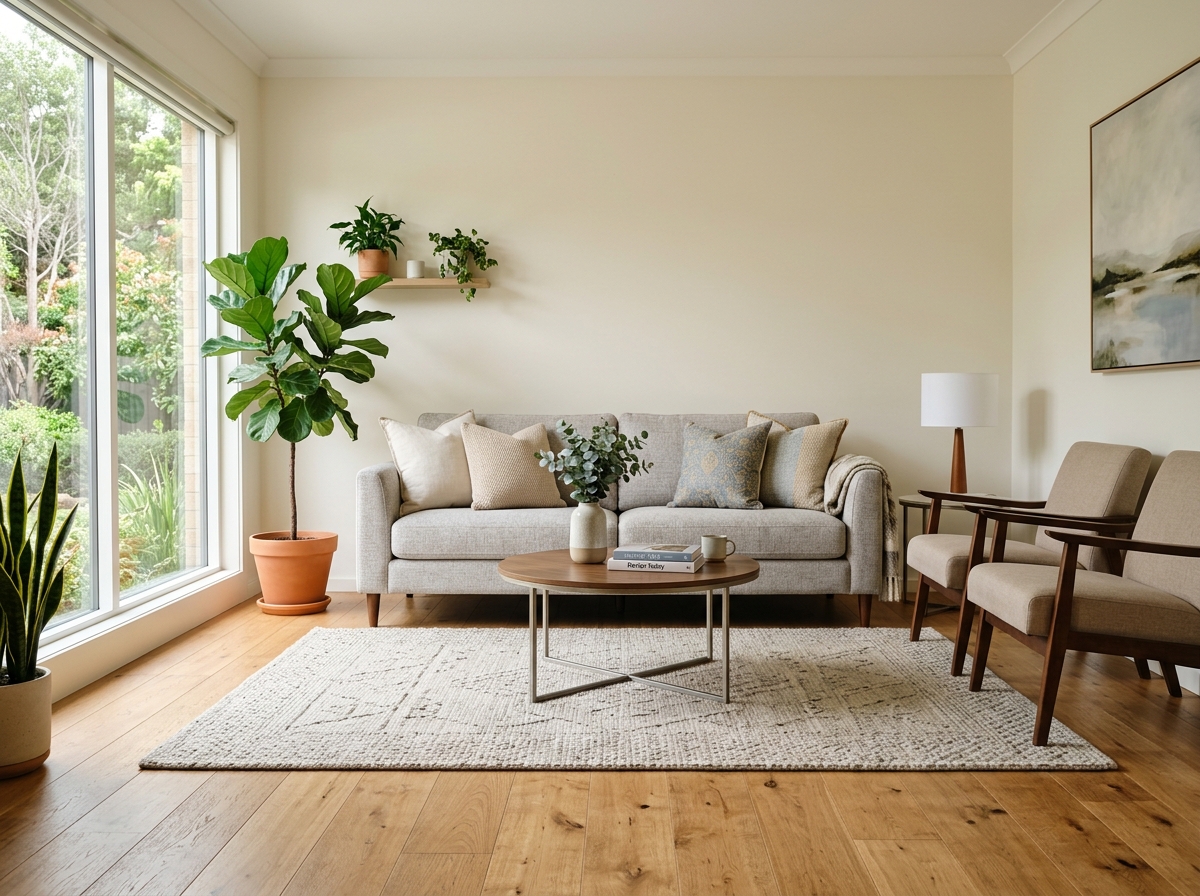
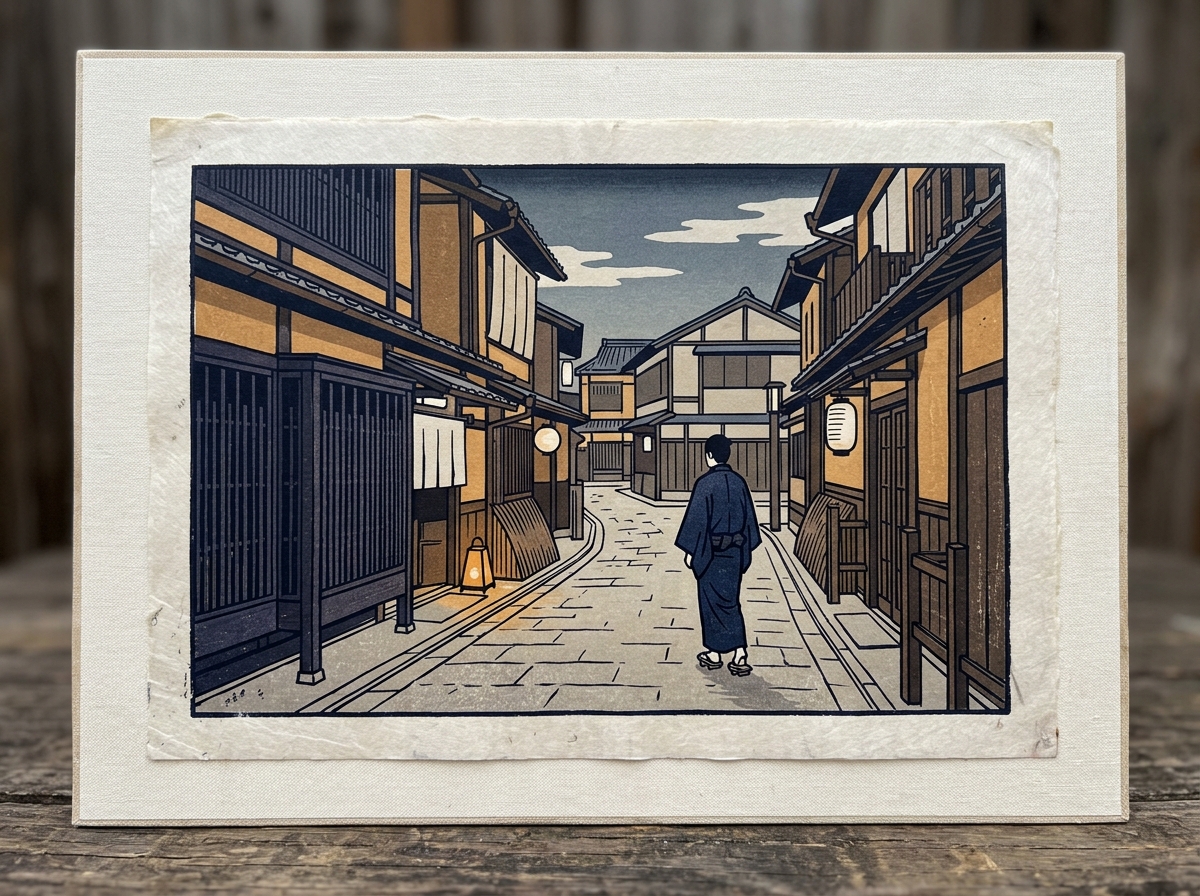
Ready-to-use Gemini photo prompts for portraits, product shots, fashion, food, and cinematic stills. Copy a template, paste it into the Gemini app or AI Studio, and generate — or lock identity on an uploaded photo.
What a Gemini AI photo prompt copy paste workflow actually is
A gemini ai photo prompt copy paste workflow is a written brief you reuse in Google’s image models. You are not tagging a generator with “8k cinematic ultra detailed.” You are handing Gemini a short scene description: who is in the frame, what they are doing, where they stand, how the camera is set, how the light falls, and what must not change.
That matches Google’s own image prompting advice: describe the scene, don’t just list keywords. Narrative prompts produce more coherent photos because the model is built to understand language, not a bag of style tags.
Use this page in two ways. For a new image, copy a text-to-image card and paste it as-is or swap the subject. For a real person or product you already photographed, copy an identity-lock or inpainting card, upload the photo in the same chat, and ask for one transformation.
How to copy, paste, and generate
1 Pick the job
Decide whether you are generating a new scene from text or editing an uploaded photo. Identity-lock prompts belong with a reference image. Text-to-image prompts must carry subject, setting, light, and crop on their own.
2 Copy a template
Open a card in the library, or build a prompt with the form. Copy the full paragraph. Replace bracketed details such as outfit, location, or product only where the template invites it.
3 Paste into Gemini
Open the Gemini app or Google AI Studio. Upload a photo if the card says to. Paste the prompt in the same turn. Add the aspect ratio if you still need a specific crop.
4 Iterate in conversation
Keep what works. Ask for one change at a time: warmer light, less retouching, a tighter crop. If identity drifts, start a new chat with the original photo and the lock prompt.
The prompt formula that beats keyword lists
Google’s public template for photorealistic scenes is a paragraph, not a comma-separated dump. Build yours in this order. Put preservation rules first when you are editing a photo, because earlier instructions carry more weight.
Reusable Gemini photo prompt skeleton
A photorealistic [shot type] of [subject], [action or expression], set in [environment]. The scene is illuminated by [lighting], creating a [mood] atmosphere. Captured with a [camera / lens], emphasizing [textures]. [Aspect ratio]. [Constraints: no text, keep identity, do not change crop.]
For edits, invert the skeleton: lock identity or layout, then name the one field you want to change. “Keep my face, age, and hairline. Change only the blazer to navy wool.” Stacking wardrobe, age, makeup, and location in a single paste is how faces drift.
Gemini photo prompt library
Each card includes a scene placeholder, the job the prompt is for, and a full copy-paste brief. Filter by category or search lighting, lens, or subject.
Professional LinkedIn-style headshot of a person in a navy blazer and white shirt against a softly blurred office background
Photo editUpload a photo, then paste · 4:5
LinkedIn headshot with identity lock
Keeps your face, age, and hairline intact while restyling wardrobe and backdrop for a recruiter-ready portrait.
Fill the six fields, then copy the assembled paragraph. This is the same structure as the library cards: subject, action, setting, camera, light, and constraints.
Technical habits that improve Gemini photo prompts
Be specific about materials. “Ornate elven plate etched with silver leaf, falcon-wing pauldrons” beats “fantasy armor.” The same rule applies to wool, glaze, pastry lamination, and skin.
Control the camera. Wide-angle, macro, low angle, 85mm portrait, Dutch angle, and overhead are all legal levers. If you omit the lens, Gemini invents a crop.
State the job. “E-commerce listing on a white sweep” or “portfolio headshot for LinkedIn” steers styling better than “nice photo.”
Prefer semantic negatives. “An empty street with no signs of traffic” is clearer than a stack of banned objects. Keep true hard stops for identity, logos, and watermarks.
Iterate one change at a time. Follow up with “keep everything the same, make the lighting warmer.” Do not rewrite the whole brief unless the first frame is wrong.
Match the model to the job. Fast conversational edits belong in Gemini’s Flash image path. Complex typography, tight product fidelity, and multi-image composites often need the higher-capacity image model in AI Studio.
It means using a pre-written instruction with Google Gemini image models. You copy the prompt, paste it into the Gemini app or Google AI Studio, and optionally upload a reference photo. The model then generates or edits an image from that written brief instead of a list of disconnected keywords.
Should I write keyword lists or full sentences?
Use full sentences. Google’s image prompting guidance is to describe the scene rather than list keywords. A short creative brief that names the subject, action, setting, lighting, lens, and constraints produces more coherent photos than tags such as “cinematic, 8k, ultra detailed.”
How do I keep my face the same when I edit a photo?
Put identity instructions first. State what must not change (face, age, hairline, body, expression), then name the single transformation (outfit, background, or lighting). Avoid stacking several dramatic edits in one paste. If features drift, start a new chat and paste the identity-lock prompt again with the original photo.
What aspect ratio should I specify?
Say it in the prompt. Use 1:1 for feeds and product tiles, 4:5 or 3:4 for portraits and lookbooks, 16:9 for cinematic stills, and 9:16 for stories. For edits, add “do not change the input aspect ratio” if you need to keep the original crop.
Where do I paste these Gemini photo prompts?
Paste them in the Gemini app (gemini.google.com) or in Google AI Studio. For identity-lock templates, upload a clear, well-lit photo in the same chat before or with the prompt. Iterate with a follow-up such as “keep everything the same, warm the lighting slightly.”
Why did Gemini refuse or change my prompt?
Safety filters can flag vague or sensational wording. Rephrase with technical photography language, state a legitimate use (portfolio, product listing, editorial), and describe the scene positively instead of a long list of “no” terms. A fresh chat often clears a stuck context.